Creative tools & workflows
Adobe Illustrator Alternatives: Pick the Editor for the File You Deliver
Five maintained editors compared on file exchange, SVG/PDF handoff, print controls, platforms, and cost. Pick for the file you deliver, then test one project.
· · Diagram Studio Editorial
If your team lives in Illustrator files, the decision isn’t which alternative is best overall. It’s which editor can open the files you receive, let you edit the parts that matter, and return something the next person can actually use. Five maintained editors are credible candidates: Affinity by Canva, Inkscape, CorelDRAW Graphics Suite 2026, VectorStyler, and Boxy SVG. They split less on raw drawing power than on three things: documented file exchange, license shape, and platform coverage.
The short answer is to match the editor to the document you must deliver. For SVG handoff to a web or design-system team, Boxy SVG and Inkscape have the clearest documented routes. For a client who expects a .ai file back, CorelDRAW is the only editor in this group with a documented AI export path, and its own help page warns that some objects change during that export. For iPad work, Affinity is the obvious candidate. For Linux or an open-source stack, Inkscape. For a low-cost desktop editor with a one-time license, VectorStyler currently sells for $95. Import, editing, and export are separate promises, and every one needs its own check.
This comparison is based on official documentation inspected on 4 November 2026. No editor was installed, benchmarked, or used in this review, so “documented” means the supplier states it, not that this article proved it with your files.
Direct answer
Choose an Illustrator alternative by the file you deliver, not by overall ranking. For SVG handoff, Boxy SVG and Inkscape center their workflows on SVG. For client .ai handback, CorelDRAW has the only documented AI export path here, with explicit conversion limits. Affinity covers iPad and free core tools; Inkscape covers Linux; VectorStyler is a $95 one-time desktop option. Import, editing, and export are separate claims. VectorStyler documents that it edits AI but cannot export it. Test one representative file before switching.
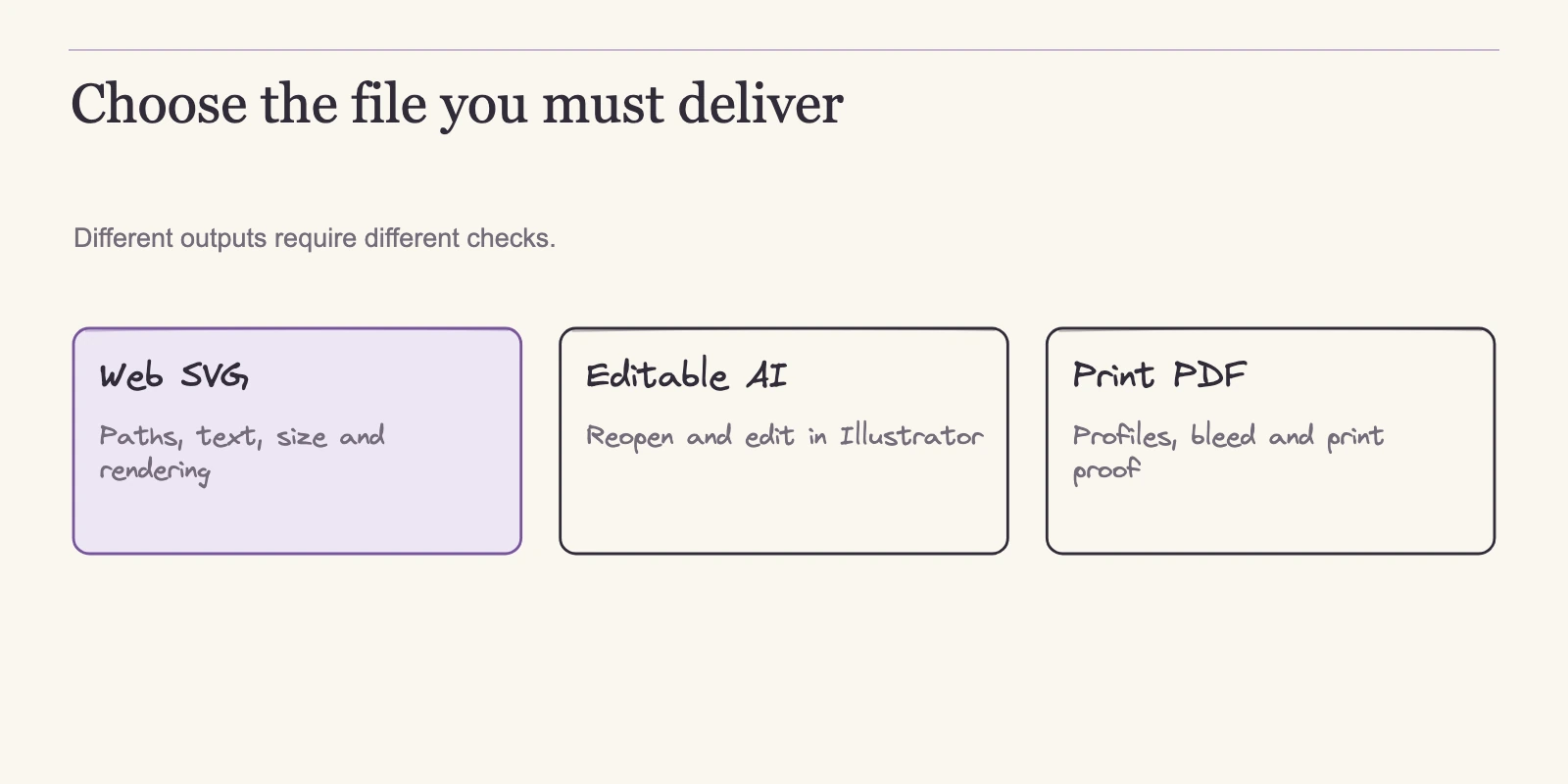
Match the Editor to the File You Must Deliver
The output that would hurt most if it failed is the right starting point.
- Web and design-system handoff: If you are delivering SVG, Boxy SVG and Inkscape make SVG the center of their documented workflow. Boxy SVG saves SVG and SVGZ and exports PNG, JPG, WebP, PDF, and HTML5. Inkscape treats SVG as its working format and recommends keeping an Inkscape SVG as the editable master.
- Client handback to Illustrator: If the client needs a
.aifile back, CorelDRAW is the only editor in this group whose documentation includes an AI export path. Its dedicated 2026 Help page describes the export controls and also lists the conversion limits. The other four either do not document AI export or explicitly rule it out. - Print production: Affinity and CorelDRAW document real print controls, including CMYK, spot colours, preflight, and bleed. What they do not provide is a finished print proof. That depends on the file matching your printer’s specific PDF/X and colour specification.
- Platform constraints: Inkscape is the only editor here with documented Linux builds. Affinity is the only one with an iPadOS build. Corel’s browser app is subscriber-exclusive. No single editor covers every operating system.
- Concept generation: If the job is generating initial logo concepts from a text prompt, a logo image generator is a different purchase. This article covers manual vector editing and production handoff after those concepts already exist.
A tool can serve one route well and say almost nothing about another. The useful question is not “which editor is better” but “which editor has a documented path for the file I have to move today.”
Read a Compatibility List as Three Separate Claims
A format list often reads like a single promise. In practice it is three claims glued together: the file opens, its objects can be edited, and the result can be exported back into a format another application will accept. Those claims are independent.
Illustrator files also come in different shapes. Some are native .ai documents; some are saved with PDF-compatible data, which makes them readable by PDF-aware tools. Opening a file does not mean every object inside it is editable. If text becomes outlines, a gradient flattens, or an effect rasterizes, you can still see the artwork while editing far less of it.
The usual translation risk points are live text, variable-font axes, text on a path, gradients, effects, meshes, symbols, clipping masks, spot colours, overprint settings, and PDF/X intents. A vendor compatibility list tells you which file types are recognized. It does not tell you which of those objects survive. That is why every claim below should be read as an invitation to run one representative file through the editor, not as a finished guarantee.
Five Editors, Five Different Exchange Directions
| Editor | Platforms as documented | Price as documented | Documented exchange direction |
|---|---|---|---|
| Affinity by Canva | Windows, macOS, iPadOS | Core tools free with Canva account activation | Imports AI, PSD, PDF, SVG, IDML; no AI export listed |
| Inkscape | Windows, macOS, Linux | Open source | Opens AI and PDF; SVG is the working format; native .ai export removed |
| CorelDRAW Graphics Suite 2026 | Windows, macOS; web app for subscribers | $269/year subscription; $549 suggested one-time | AI import and export documented, with explicit conversion limits |
| VectorStyler | macOS, Windows | $95 one-time commercial | Opens and edits AI; cannot export or save AI |
| Boxy SVG | Mac app; linked web demo | $19.99 US Mac App Store | SVG/SVGZ save; PNG/JPG/WebP/PDF/HTML5 export |
Prices are USD list values from the inspected pages, not checkout quotes.
Affinity by Canva
Affinity’s product page places the current app on Windows, macOS, and iPadOS. The core vector, pixel, and layout tools plus export are free with a Canva account activation. Activation needs internet, and offline work is supported afterwards. A premium Canva plan adds AI features, but that pricing was not part of this review.
The same page documents typography features that matter for editorial and brand work: variable fonts, ligatures, stylistic sets, linked text frames, and autoflow. It also lists CMYK, spot colours, preflight, and bleed, and includes AI, PSD, PDF, SVG, and IDML among its imports. What it does not list is an AI export path, so a pure .ai handback is not a documented route. There are two more cautions: the shared .af format will not reopen new files in V2, and the iPad version does not include Books, Batch, Data Merge, or macro recording.
Inkscape
Inkscape is open source, and the manual documents Windows, macOS, and Linux builds. The project wiki says Inkscape opens AI and PDF files and records that native .ai export has been removed. The export manual recommends keeping an Inkscape SVG as the editable master and using Save a Copy for exchange formats, and it warns that most export formats do not support every Inkscape feature. In practice, Inkscape is a serious SVG-centered editor and the only candidate here with a documented Linux path, not a native AI return channel. No subscription or paid tier appears in the inspected material.
CorelDRAW Graphics Suite 2026
Corel’s September 2026 release note lists the suite at $269/year for subscription and $549 suggested one-time purchase. The family page explains what those licenses mean: subscription unlocks exclusive features, including subscriber-exclusive browser access; the one-time purchase keeps that version and requires a full-price purchase of future versions; maintenance receives monthly AI credits. Credit totals differ, 2,000/month on subscription and maintenance, 2,000 once on perpetual, but the inspected pages don’t define what a credit represents.
For AI exchange, Corel is the standout. The 2026 Help page documents File > Export to AI with target Illustrator compatibility selection, text as characters or curves, profile embedding, spot-to-process conversion, page/selection ranges, and export preflight. It also lists limits: import is documented through CS6; some gradients, global colour styles, symbols, and effects convert or simplify; export can make objects complex and change some object details. That is a real path, but it is not a lossless promise. The family page also separates Graphics Suite’s advanced colour profiles, spot colours, and professional output from the more limited CMYK tools in lower tiers, and describes text-on-path with greater typographic fine-tuning.
VectorStyler
VectorStyler sells a $95 one-time commercial licence for macOS and Windows, with a free educational licence available by application. The homepage claims native AI open/import/paste with high-level editable attributes and broad import/export. The export documentation narrows that considerably: AI files may be opened and edited, but they may not be exported or saved; saving uses VectorStyler’s own format. VectorStyler works well for bringing Illustrator artwork into a low-cost desktop workflow, but it is not a return path for native AI. Its one-time price also does not by itself guarantee future major upgrades.
Boxy SVG
Boxy SVG’s US Mac App Store listing shows a Mac app at $19.99 and links a web demo. It saves SVG and SVGZ and exports PNG, JPG, WebP, PDF, and HTML5, and the listing highlights SVG/CSS inspection and metadata retention. Those features suit a direct SVG workflow. The same listing does not document native AI import or export, and it does not cover web billing rates or non-Mac native platforms. Treat Boxy SVG as a focused SVG tool, not a full production replacement.
The Return Path: What Happens When a File Comes Back
The profiles describe what each vendor claims. The harder question is what you can hand back.
If your client works in Illustrator and expects a .ai file, you need a documented export direction. CorelDRAW has one. Its Help page gives you a compatibility selector when exporting AI, options for live type or outlined curves, profile embedding, spot-to-process conversion, and preflight. It also warns that some details change. The safe promise is “I can export AI and will confirm the result opens correctly in your Illustrator,” not “lossless identical file.”
The other editors make the return path simpler to describe. Affinity does not list AI export. Inkscape removed native .ai export. VectorStyler’s manual says it can edit AI but cannot export or save it. Boxy SVG does not document native AI. For those, a PDF or SVG return is the realistic route, and the format should be agreed on before work starts.
One distinction prevents a common misunderstanding. A PDF-compatible .ai file is not the same as a PDF deliverable. PDF-compatible AI is still an Illustrator packaging that some PDF readers may open. A PDF you export is a final document meant for review or print. Swapping one for the other can break a client’s workflow, so call out which one you are sending.
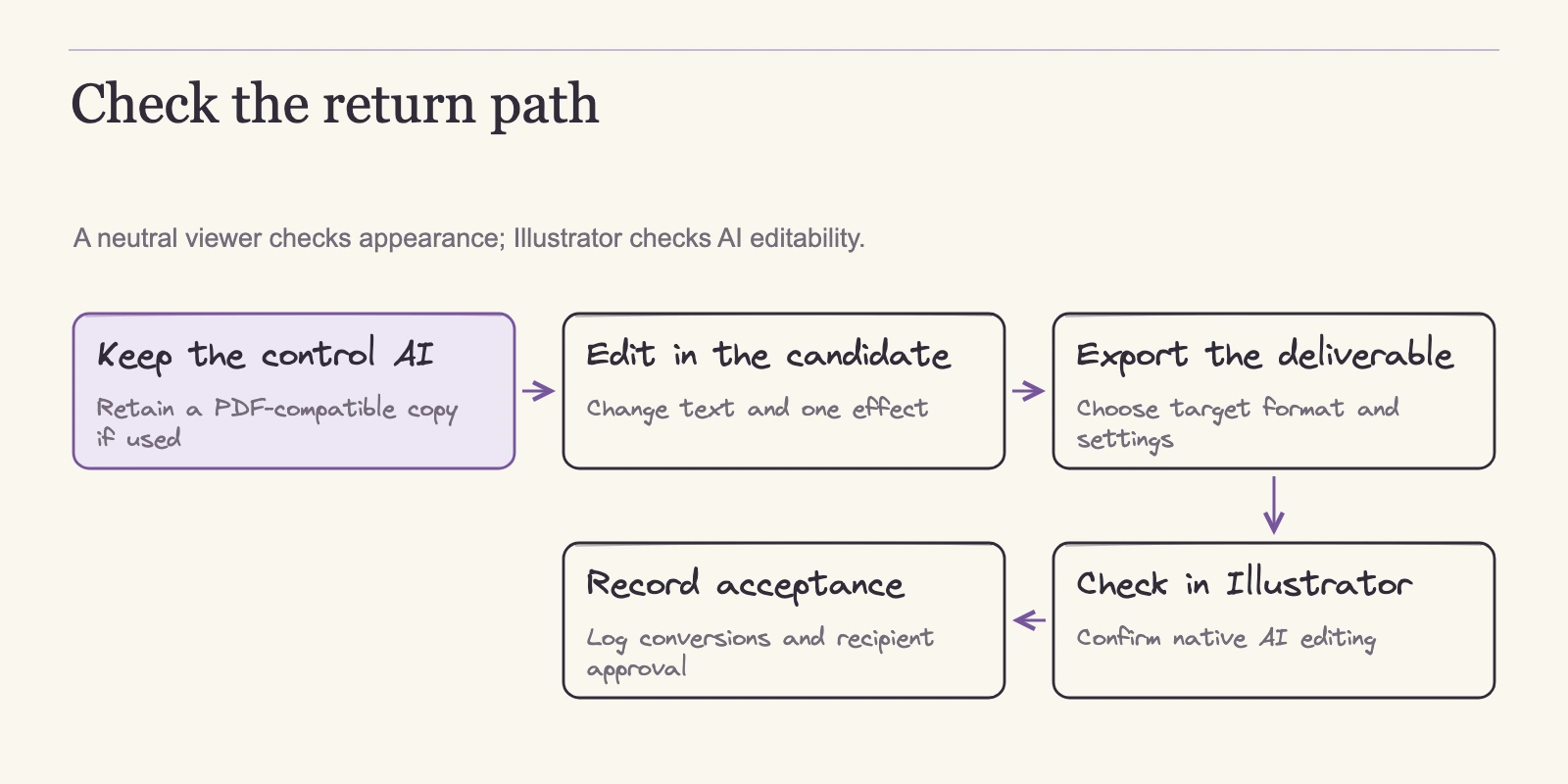
The five-step transfer check
Before anyone on a team switches editors, run one representative project through a five-step transfer check. This is a designed workflow, not a test result from this article. Build a control AI file with live text, paths, gradients, a mask or effect, and several colour samples that resemble your actual work.
- Save the original
.aifile as the control, plus a PDF-compatible copy if your workflow uses one. - Open the file in the candidate editor and make a small real edit: change a word, recolor a path, or move a layer.
- Export the required deliverable. If you are exporting AI, set the target Illustrator version and decide text versus curves, profile embedding, page or selection range, and preflight.
- Reopen the exported file in the recipient’s Illustrator to confirm the edited elements remain editable; use a neutral viewer only for an additional visual check.
- Record what opened, what changed, what flattened, which fonts are required, and whether the recipient accepted it.
Keep those results in a migration matrix that names the job, the editor, the formats tested, and the outcome. That record tells you more than any compatibility list.
SVG and Type: Where Clean Output Is Decided
If your destination is the web, SVG is usually the exchange format. Boxy SVG and Inkscape both make SVG the centre of their documented workflow. But “clean SVG” has to be defined before it means anything. For this article, clean means the viewBox matches your intended canvas, text is deliberately live or outlined, fonts are recorded, effects are preserved intentionally or flattened, embedded raster content is accounted for, and metadata does not leak tool or personal information.
Live text keeps editability but depends on the viewer’s fonts. If the renderer is missing the right family, it substitutes another font and metrics can shift. Converting text to outlines makes the rendering predictable but removes editability and increases file size. Neither choice is wrong; the right one depends on the delivery context.
Two type features deserve special attention. Variable fonts carry design axes such as weight, width, or optical size, and the renderer must honour those axes for the type to look as intended. Text on a path ties glyph placement to a curve, and the editor that created the file and the renderer must agree on how that relationship is stored. If your project uses either, inspect the output rather than assuming the format will carry it. No inspected source confirms how these features survive in imported AI files.
A short inspection checklist catches most delivery problems before they reach a client. Check that the viewBox matches the intended artboard dimensions, and confirm how the editor maps artboards to exported pages or frames if you export multiple artboards. Decide whether text stays live or becomes outlines, and record which fonts the final file requires. Look for embedded raster content and note its size. Verify that gradients, effects, and filters are flattened or preserved intentionally. Review metadata for leftover tool labels and personal information. When SVG enters a product codebase, further conversion loss becomes possible, and our design-to-code conversion mechanisms explain the main failure points and how to evaluate fidelity.
Check print settings before production
Print changes the bar. Affinity’s page documents CMYK, spot colours, preflight, and bleed. Corel’s family page says Graphics Suite carries advanced colour profiles, spot colours, and professional output, while its lower tiers have more limited CMYK tools. Those are real controls. But a finished print file is the result of matching a specific press or print vendor specification, not a side effect of choosing an editor.
The practical move is to ask your print vendor for the required output specification first. Get the PDF/X profile, bleed, ink limits, and spot-colour handling. Then build a small test document that matches your actual work: set CMYK ink values, add a spot swatch, apply an overprint setting, choose a PDF/X intent, and embed the fonts you plan to use. Export from the candidate editor and inspect the result in a PDF viewer or prepress tool. Check that the ink values survived, spot swatches are still present, overprint settings were honoured, the PDF/X intent is embedded, and fonts were not substituted or dropped.
This is a designed checklist, not a completed test. Nothing here says these editors cannot print. It says the print proof has to be earned with a file that matches your specific job and your printer’s requirements.
Teams: Platforms and Multi-Year Costs
Platform coverage affects the choice more than feature lists. Inkscape is the only candidate with documented Linux builds. Affinity is the only one with an iPadOS build. Corel’s browser app is subscriber-exclusive. VectorStyler has documented macOS and Windows builds, while Boxy SVG is documented as a Mac app with a linked web demo. No single editor spans every system, so choose using the hardware your team actually logs into.
License math should be calculated over a real timeline, not just the first invoice. Using dated USD list prices from the inspected pages, consider Corel’s two options:
- Subscription over three years: 3 × $269 = $807.
- One-time purchase with no upgrades: $549.
- One-time purchase with a full-price upgrade every year: 3 × $549 = $1,647.
Those scenarios assume no discounts, taxes, or later price changes, and the upgrade path buys a new full-price version each year. The one-time entry price looks friendly, but the subscription can be cheaper when you upgrade regularly. The subscription also includes exclusive features and browser access, while the one-time purchase keeps that version and requires a full-price purchase of future versions.
The other editors are simpler on paper. VectorStyler is $95 one-time, a flat cost if the team stays on one version, though its upgrade policy is not verified. Boxy SVG is $19.99 on the US Mac App Store, with web billing left outside that listing. Affinity’s core tools are free with a Canva account activation, though premium Canva pricing is not covered here. Inkscape is open source with no paid tier found in the inspected material, but training and internal support are still real costs. For team workflow, none of the inspected pages describes concurrent multi-user co-editing, so file handoff and version naming remain part of the process.
Frequently asked questions
Can I open Adobe Illustrator files in these editors?
Most of them document some AI intake, but opening is not the same as full editability. Affinity imports AI, PSD, PDF, SVG, and IDML. Inkscape opens AI and PDF files. CorelDRAW documents AI import through Illustrator CS6, with some gradients, symbols, effects, and global colour styles converting or simplifying. VectorStyler opens and edits AI. Boxy SVG does not document native AI import.
Which editor can return a .ai file to a client?
CorelDRAW is the only editor in this group with a documented AI export path. Its 2026 Help page documents AI export with an Illustrator compatibility selector, text as editable characters or curves, profile embedding, spot-to-process conversion, and preflight, while warning that some object details change. VectorStyler can edit AI but cannot export or save it; the other three do not document AI export.
Are any of these alternatives free?
Yes. Inkscape is open source with no paid tier found in the inspected material. Affinity's core vector, pixel, and layout tools plus export are free with a Canva account activation, though premium Canva pricing was not reviewed. Boxy SVG costs $19.99 on the US Mac App Store, and VectorStyler is $95 one-time. CorelDRAW starts at $269 per year or $549 one-time.
Which editor handles print work best?
Affinity and CorelDRAW Graphics Suite are the two editors here that document professional print controls. Affinity lists CMYK, spot colours, preflight, and bleed. Corel's family page separates Graphics Suite's advanced colour profiles, spot colours, and professional output from more limited CMYK tools in lower tiers. A finished print proof still requires matching your printer's PDF/X and colour specification, so verify with a real test file.
Which editor is best for SVG web handoff?
Boxy SVG and Inkscape put SVG at the centre of their documented workflows. Boxy SVG saves SVG and SVGZ and exports PNG, JPG, WebP, PDF, and HTML5. Inkscape treats SVG as its working format and advises keeping an Inkscape SVG as the editable master for exchange exports. Before delivery, inspect viewBox, live versus outlined text, font requirements, effects, embedded raster content, and metadata.
Which editor fits my team's operating systems?
Match the editor to your team's hardware. Inkscape is the only candidate with documented Linux builds; Affinity is the only one with an iPadOS build. CorelDRAW runs on Windows and macOS, with browser access exclusive to subscribers. VectorStyler documents macOS and Windows, while Boxy SVG is documented as a Mac app with a linked web demo. No single editor spans every platform.
Make the Decision by Testing One Project
The comparison becomes actionable when you stop asking which editor is best and ask which job needs finishing. Name the primary deliverable. Require the documented exchange direction for that deliverable. Match the editor to the team’s platforms. Price the license over the team’s actual upgrade horizon. Then run the five-step transfer check on one representative project.
If a client contractually requires .ai delivery and the candidate’s export test fails, keeping Illustrator for that contract is a legitimate outcome. An alternative can handle adjacent jobs without replacing the production-critical one. That is not a failure of the comparison; it is a precise boundary.
The next action is concrete: gather one client AI file that contains live text, gradients, masks, and colour samples, run the five-step transfer check, and record the results. The editor that passes that test is your alternative for that job. The editor that fails it stays off that route. Over a few projects, the migration matrix replaces the compatibility lists and tells you exactly where each tool can be trusted.