Creative tools & workflows
Photoshop Alternatives: Compare Five Tools by Job, Platform, PSD
A practical 2026 comparison of five Photoshop alternatives, organized by job, platform, documented PSD support, and cost, ending with a repeatable round-trip method for checking editable layers, masks, text, and smart objects.
· · Diagram Studio Editorial
Leaving Photoshop rarely begins with a feature complaint. It usually starts with a subscription renewal, a locked-down work machine, or the realization that most of the program sits unused. What keeps people in place is the archive: years of layered PSDs, client deliverables, and print specs that make switching feel like a gamble.
Workable alternatives exist in 2026, and the right one depends on four things: your recurring job, the platforms you work on, what you are willing to pay, and which PSD features must stay editable after the move. Five editors are worth a serious look: Affinity, Photopea, GIMP, Krita, and Pixelmator Pro. None claims exact Photoshop parity.
The comparison below rests on official vendor pages inspected on 4 November 2026. No hands-on conversion test was run for this article. Documentation shows what a tool claims to open and save; it rarely proves what stays editable after a round trip. That is why the guide ends with a repeatable test you can run on copies of your own files before committing.
Direct answer
Which Photoshop alternative fits depends on your job, platforms, budget, and the PSD features you must keep editable. Krita suits painting and illustration; GIMP covers free general raster editing; Photopea handles browser-based PSD work; Affinity supports mixed design work on Windows, macOS, and iPadOS; Pixelmator Pro fits Apple-native workflows. None documents exact Photoshop parity, so test copies of your own files: open, edit a fragile layer, export to PSD, reopen, and log what survives.
Start with the job, not the tool name
The five tools are not interchangeable clones. Each has a different center of gravity, so the first filter is the job you are replacing.
Krita's PSD manual lists what it loads and saves: raster layers, blending modes, layer styles, vector shapes, text layers, layer groups, and transparency masks. That is a painting-oriented feature set, a natural fit for concept art, textures, and illustration, and a weak fit for layout-heavy production work.
Affinity covers image editing, illustration, and page design in one family. Photopea positions itself as browser-based PSD editing with no installation, which suits machines where installing software is impractical. GIMP is a general raster editor whose 3.0 release notes document nondestructive GEGL filters, a meaningful distinction from older 2.x-era summaries. Pixelmator Pro is a Mac-native editor sold through Apple.
None of these sources claims exact parity with Photoshop. A painting tool can be excellent for illustration and still wrong for client handoff. A browser editor is convenient but ties your workflow to a browser session.
Starting points by job
| Recurring job | Starting point | Documented reason |
|---|---|---|
| Painting and illustration | Krita | PSD manual lists raster layers, blending modes, layer styles, vector shapes, text layers, groups, and transparency masks |
| General raster retouching | GIMP | 3.0 release notes document GEGL nondestructive filters and improved PSD import/export |
| Browser-only or occasional PSD work | Photopea | Runs in a browser without installation; documents PSD open and save |
| Mixed design plus image work | Affinity | Pixel, Vector, and Layout tools in one free core app |
| Apple-native workflows | Pixelmator Pro | Native Mac and iPad editor with PSD import and export documented |
Each row is a starting point, not a tested verdict. Once a job points to one or two candidates, the next filter is where they run.
Where you work narrows the list before features do
Affinity runs on Windows, macOS, and iPadOS. Activation requires an internet connection and a Canva account; after activation, the core tools work offline, while online integrations and AI features need internet. At launch, the iPad version lacked several desktop features, including Books, Batch, Data Merge, macro recording, and Astrophotography, so iPad-first users should check whether any of those matter.
Photopea runs in a browser, and the site says processing happens locally on your CPU or GPU. That makes it a browser option on any device with a capable browser, including Linux and iPad, though large files and complex documents will still depend on your hardware. Offline behavior is not addressed in the reviewed material, so plan for a live connection unless you verify otherwise.
GIMP provides downloads for Linux, Windows, and macOS. The stable release is 3.2.8, released 2 November 2026. Krita's download page lists Windows 8.1+, macOS 10.15, Linux, and Android, with no iPad or iPhone version. The current build is 5.3.4.1, released 7 October 2026, and its guidance lists 4 GB RAM as the minimum with 16 GB recommended for heavier work.
Pixelmator Pro is Apple-only. The current FAQ lists macOS 26 and iPadOS 26, with iPad hardware limited to M1 or later, an iPad A16, or an iPad mini A17 Pro. Subscribing requires an Apple account and internet access, and some features need a connection. The $49.99 standalone Mac purchase and the Creator Studio subscription are separate products with different inclusions.
Platform coverage
| Tool | Windows | macOS | Linux | iPadOS | Android | Browser |
|---|---|---|---|---|---|---|
| Affinity | Yes | Yes | Not offered | Yes | Not offered | No |
| Photopea | No native app | No native app | No native app | No native app | No native app | Yes, any device |
| GIMP | Yes | Yes | Yes | Not offered | Not offered | No |
| Krita | Yes, 8.1+ | Yes, 10.15+ | Yes | No, unsupported | Yes | No |
| Pixelmator Pro | No | Yes, 26 | No | Yes, 26, M1+/A16/A17 Pro | No | No |
The browser column changes the practical math. Linux users have three documented routes: GIMP, Krita, or Photopea in a browser. iPad users have Affinity, Pixelmator Pro, or Photopea in a browser. Windows and macOS users have the widest native choices, with Photopea as a fallback for machines where installation is blocked.
With platforms narrowed, the next question is your file library: what each tool documents about PSD, and what remains unproven.
What "supports PSD" means
Three promises get mixed together: opening, preserving, and round-tripping. Opening reads the file. Preserving keeps the structures you still need to edit. Round-tripping means the file you export from the new editor reopens in Photoshop with both appearance and structure intact. A vendor can document the first and stay silent on the other two. Real-world file compatibility depends on all three.
Everything below is documented capability, not measured preservation.
Photopea's homepage says it opens and saves PSD files and describes that support as full. The same page explicitly lists layers, masks, layer styles, smart objects, and adjustment layers among the editing features it offers. That is a documented capability list, not proof that every structure survives a save-and-reopen cycle. The page also lists AI, SVG, PDF, TIFF, and RAW as additional inputs, a reminder that an input list is not an editing guarantee.
The GIMP 3.0 release notes document improved PSD import and export, Photoshop-specific JPEG and TIFF metadata, clipping paths, guides, and layers, plus CMYK import and export for JPEG, TIFF, PSD, and JPEG XL. The notes describe improvements in the current 3.x line, not Photoshop equivalence. The stable release, 3.2.8, belongs to that line.
Krita's PSD manual goes further and itemizes what loads and saves: raster layers, blending modes, layer styles, vector shapes, text layers, layer groups, and transparency masks. It also warns that external PSD compatibility can be limited. Where PSD interchange looks risky, the manual suggests the OpenRaster (ORA) interchange format or TIFF instead. KRA, not ORA, is Krita's native master format; KRA saves the features Krita handles, while ORA is an exchange format that may sacrifice editor-specific information. Native-master retention and exchange deliverables serve different jobs.
Affinity's documentation explains the most about what happens on import. An official Affinity article says opening a PSD keeps its layer structure and maps adjustment layers to Affinity equivalents. Imported work normally saves into an Affinity document, and writing back to PSD is available through File > Export. By default, PSD smart objects rasterize on import, but General settings offer an option labeled "Import PSD smart objects where possible," and an imported smart object can be edited through its layer and Move tool controls. Editable text has a separate import-as-text preference.
The color space of the opened file is kept by default, with an option to convert to the working space. These are documented import and export mechanisms, not proof that arbitrary Photoshop features survive a full return trip. One format warning: files saved in the current Affinity format cannot be reopened in the older V2 line, so do not treat Affinity's native format as an archival bridge.
Pixelmator Pro lists PSD, SVG, PDF, Illustrator, and EPS support with vector data retained, and the Apple user guide confirms PSD among its export formats. Exact per-feature fidelity, especially for smart objects and editable typography, would still need testing against your own files.
What the documented claims cover
| Tool | Documents opening | Documents exporting | Documented structures |
|---|---|---|---|
| Photopea | PSD | PSD | Layers, masks, layer styles, smart objects, and adjustment layers are listed editing capabilities |
| GIMP 3.x | PSD; Photoshop-specific JPEG/TIFF metadata; clipping paths; guides; layers | PSD; CMYK JPEG/TIFF/PSD/JPEG XL | Improved import/export; no full feature inventory |
| Krita | PSD | PSD | Raster layers, blending modes, layer styles, vector shapes, text layers, groups, transparency masks |
| Affinity | PSD | PSD via File > Export | Layer structure retained; adjustment layers mapped; optional smart-object import; editable-text preference; color-space handling |
| Pixelmator Pro | PSD | PSD | Vector data retained |
None of these sources proves that your specific file's every structure survives a round trip.
The fragile layer types that decide whether a migration works
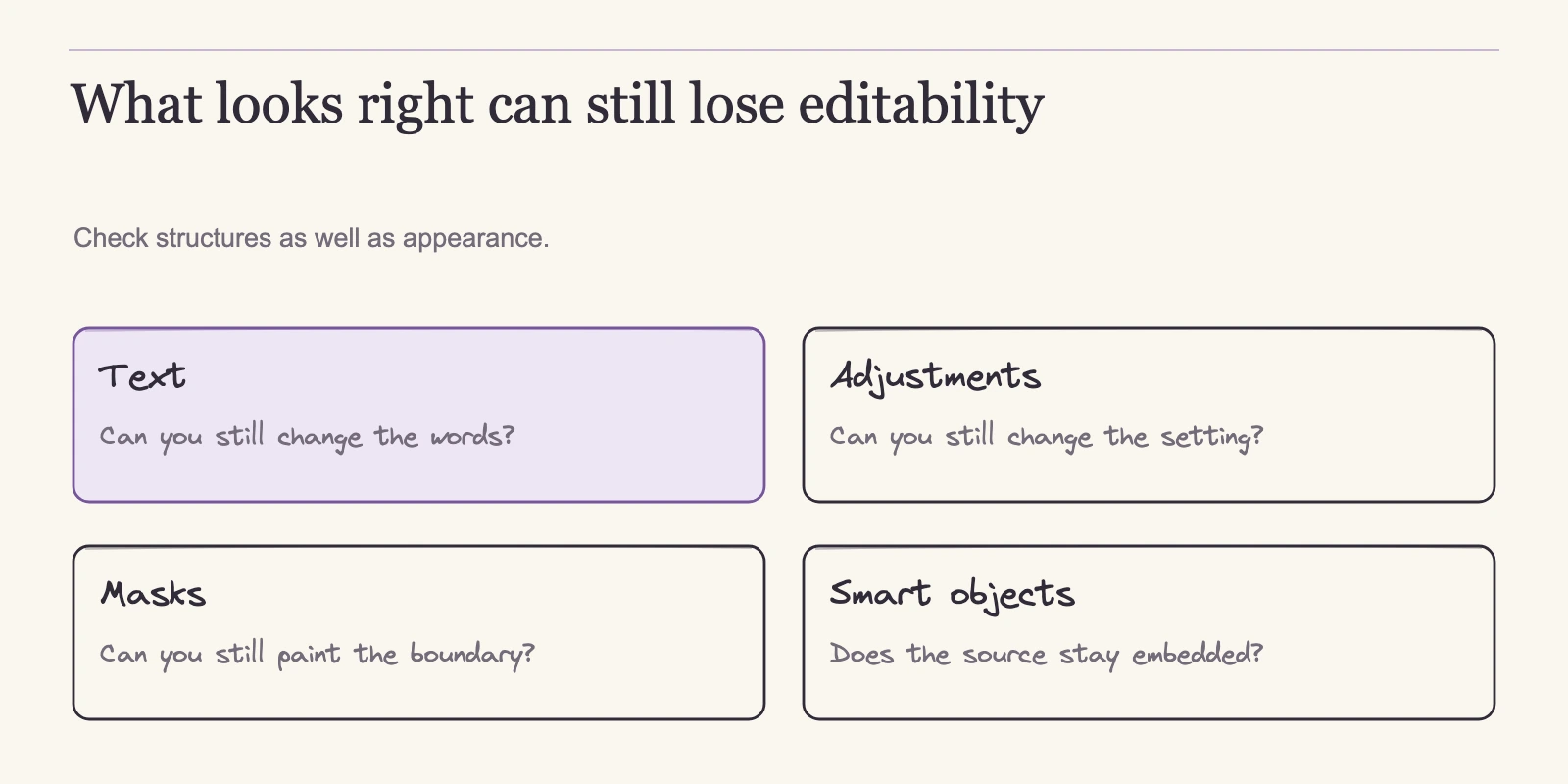
Text layers depend on installed fonts and the receiving editor's text engine. When either differs, the editor may substitute a typeface or convert type to pixels. The preview can look identical while the layer stops being text; only an edit reveals it.
Adjustment layers and masks are nondestructive operations. An editor that applies the result instead of modeling the operation shows the right image and the wrong structure. A curves adjustment becomes a flattened brightness change, a mask merges into alpha, and neither is visible until you try to adjust it later.
Smart objects are embedded file containers. None of the sources here proves their preservation across a round trip. If a smart object returns as a rasterized layer, you lose the contained source file, not just one effect.
Color profiles decide print fidelity. GIMP documents CMYK import and export, but production fidelity is unverified in every tool reviewed here.
A designed example makes the risk concrete. Picture a print PSD with a CMYK profile, three text layers, a curves adjustment, a layer mask, and a smart object in a group. Opening it in any candidate can display every element. The questions are whether the text stays editable, the curves layer remains a separate operation, the mask stays paintable, and the smart object stays an embedded container. Every no is invisible in the preview and decisive for the next edit.
Checklist for the fragile features
| Feature | What documentation covers | What to check in your own file |
|---|---|---|
| Text layers | Krita lists text layers; Affinity has an import-as-text preference | After a round trip, can you still edit the type? |
| Adjustment layers | Affinity maps them to equivalents; Photopea lists them as editing features | After a round trip, is the adjustment still a separate operation, not merged pixels? |
| Masks | Krita lists transparency masks; Photopea lists masks | Can you still paint on the mask after reopening? |
| Smart objects | Affinity offers optional smart-object import; no source proves round-trip preservation | Does the returned file still contain the embedded source? |
| Color profiles | GIMP documents CMYK import/export; Affinity keeps the imported color space by default | Compare the assigned profile before and after; proof if the deliverable is print |
Keep this table as a template until you fill it with your own files. Passing rows mean the structure survived an actual round trip. Failing rows tell you what to rebuild or flag during handoff.
Job, platform, and file requirements eliminate some candidates. The next filter is what each remaining option charges over a year of real use.
What each alternative costs, compared in the same units
All amounts are US dollars from the cited official pages.
GIMP is free to download for Linux, Windows, and macOS, and no paid plan appeared on the download page. The official FAQ explicitly permits commercial work and says GIMP does not restrict the kind of work produced. Product use and redistribution of modified software are different questions; this article covers use, not redistribution.
Krita is free and open source, with optional paid store builds whose prices were not checked here.
Affinity's core Pixel, Vector, and Layout tools and exports are free with a free Canva account. Canva AI Studio requires a Canva premium subscription whose price was not part of this review. Free core tools do not make every AI or online feature free.
Photopea works on a free tier; Premium removes ads. The exact Premium rate is not published on the public pages; the account page directs readers to the in-app Account window.
Pixelmator Pro offers two payment routes. The Mac app is a one-time purchase for $49.99. Apple Creator Studio is a subscription at $12.99/month or $129/year, with education pricing at $2.99/month or $29.99/year and a 30-day trial; it includes iPad and a different feature set, including the Warp Tool. The standalone purchase is not feature-identical to the subscription.
The useful calculation is monthly versus annual renewal. Assuming you keep the subscription for the full period, the difference equals (monthly rate × 12) minus the annual rate. Standard: $12.99 × 12 = $155.88, which is $26.88 more than $129. Education: $2.99 × 12 = $35.88, which is $5.89 more than $29.99. Annual billing is cheaper if you keep the subscription for a year; monthly carries a small premium if you want to cancel sooner. Over two years, the standard annual plan costs $258 versus $311.76 billed monthly. The one-time $49.99 purchase avoids renewal but covers only the Mac app.
Cost model summary
| Tool | Pricing model | Documented amount |
|---|---|---|
| GIMP | Free download | No paid plan identified on the inspected page |
| Krita | Free, open source | Free download; paid store builds not priced here |
| Affinity | Free core with a free Canva account | Core tools and exports free; Canva premium price not inspected |
| Photopea | Free tier; Premium removes ads | Free tier; Premium rate shown only in the in-app Account window |
| Pixelmator Pro | One-time Mac purchase; Apple Creator Studio subscription | $49.99 one-time; $12.99/month or $129/year; education $2.99/month or $29.99/year; 30-day trial |
Price settles what you will pay. Only a round-trip test settles whether your files survive in the editor you choose.
Run a PSD round-trip test before you commit
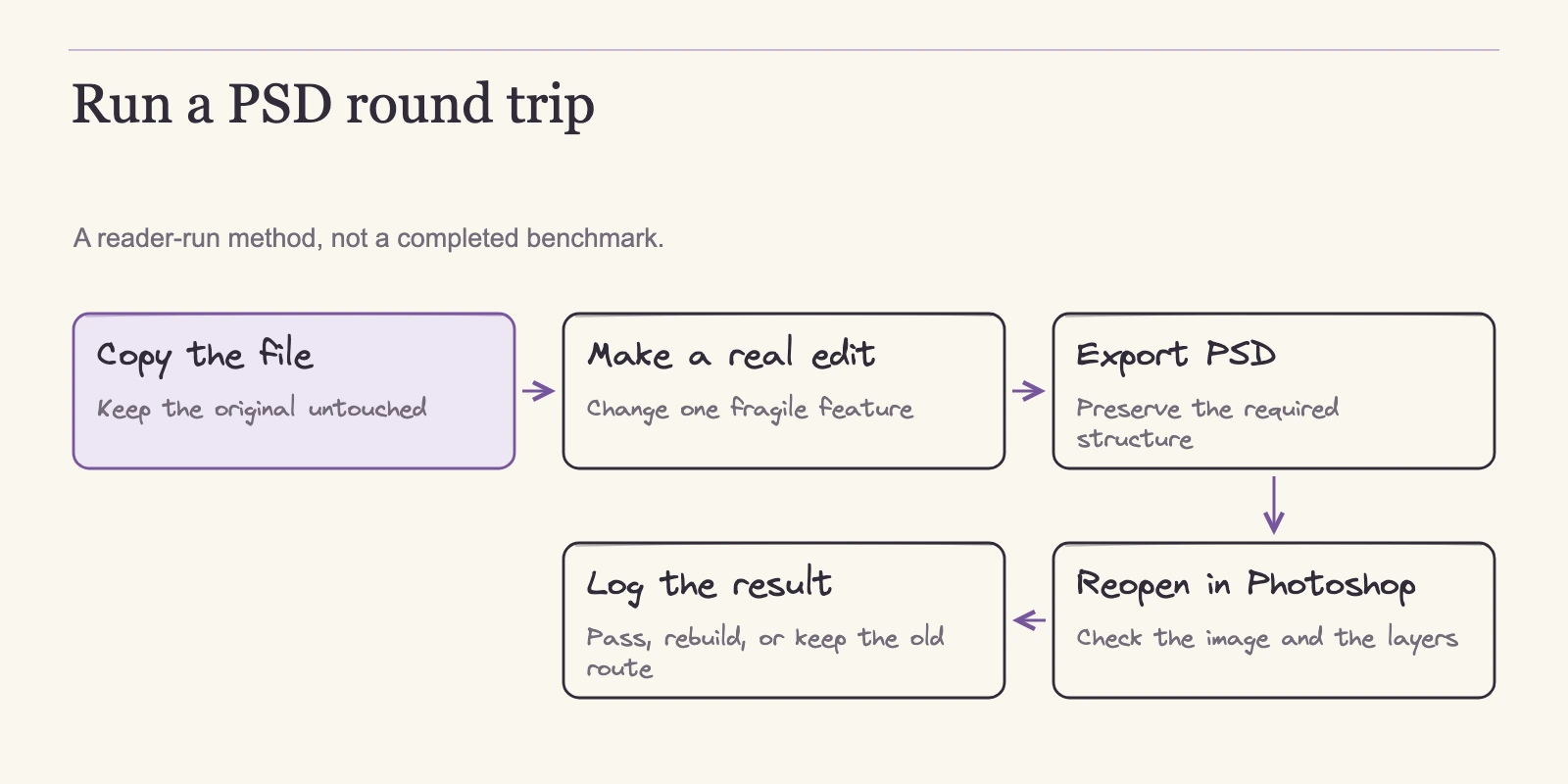
The protocol below is a designed method for you to run, not a report of a completed test. It answers a stricter question than "does it open PSD?" After an edit and re-export, does the file still carry the structures you need?
Assemble representative files
Test three to five PSDs that represent your actual jobs, including a client-critical deliverable if you have one. Each should contain at least one fragile feature: editable text, an adjustment layer, a mask, a smart object, or an assigned color profile. Work on copies, never originals. Before conversion, write down the layer tree, color profile, font names, and smart-object names.
Run the cycle
- Open the copy in the candidate editor and log any warnings about missing fonts or unsupported features.
- Audit each fragile feature with the smallest change that proves editability: edit a text layer, move a curves control point on an adjustment layer, paint on a mask, and try to open a smart object.
- Export to PSD using the tool's documented PSD path. Photopea documents PSD open and save. GIMP 3.0 documents improved PSD import and export. Krita's manual lists the PSD features it loads and saves. Affinity documents PSD export through File > Export, and Pixelmator Pro lists PSD among its export formats.
- Reopen the export in your original editor and compare the layer tree and appearance feature by feature.
- Record each feature as pass or fail. Pass means structure and appearance survive. Fail means the file looks right but something structural is gone, such as text turned to pixels or a smart object rasterized, or the file no longer meets the delivery requirement.
One refinement matters in step 2. Changing an adjustment layer's opacity proves the layer exists; it does not prove the operation is still adjustable. To test an adjustment layer properly, change a parameter, save, reopen, and change the same parameter again. If the second change is impossible, the adjustment has been flattened into pixels.
Krita's manual warns that external PSD compatibility can be limited. Treat that warning as applying to the whole exercise: imported feature support is not the same as preservation through every export.
Record results in a migration log
Keep one row per file and feature. The table below is a blank template for your own records.
| File | Feature | Documented expectation | Result after round-trip | Handoff decision |
|---|---|---|---|---|
| [File name] | Text layer | Krita lists text layers; no vendor verifies editable typography after export | [Pass/Fail] | [Deliver as saved, rebuild, or flag to client] |
| [File name] | Adjustment layer | Affinity maps adjustment layers; Photopea lists them | [Pass/Fail] | [Deliver as saved, rebuild, or flag to client] |
| [File name] | Mask | Krita lists transparency masks; Photopea lists masks | [Pass/Fail] | [Deliver as saved, rebuild, or flag to client] |
| [File name] | Smart object | Affinity offers optional smart-object import; no source proves round-trip preservation | [Pass/Fail] | [Deliver as saved, rebuild, or flag to client] |
| [File name] | Color profile | GIMP documents CMYK; Affinity keeps the imported color space by default | [Pass/Fail] | [Proof or flag for print] |
Rows are templates for you to fill in; they are not results from this article. When several files share the same failure, you have found a structural limit for your workflow. Judge the tool only against the files it actually handles. A tool can pass illustration files and fail print handoffs; a hybrid setup is legitimate.
Client handoff: when a saved PSD is not a usable PSD
Agencies, collaborators, and print vendors often work in Photoshop. When a contract specifies PSD deliverables, a file is usable only if its structure survives along with its picture.
Saving PSD is documented for Photopea, GIMP 3.0, Krita, Affinity, and Pixelmator Pro. None of these sources demonstrates client-ready fidelity after a conversion. The failure modes described above are invisible in preview. The client sees the right image, then finds the layer tree missing when trying to edit. The file is still a PSD and still a failed deliverable.
Five rules keep handoffs safe:
- Identify client-critical deliverables before switching.
- Run the round-trip protocol on copies of those files.
- Record the handoff decision for each row in the migration log.
- Keep Photoshop for any deliverable that fails.
- When a file passes, tell the client which structures survived and which you rebuilt.
Recovery depends on the structure that failed. A rasterized smart object can often be rebuilt by returning to the original PSD, extracting the embedded source, and recreating the object in the delivered file. A flattened adjustment cannot be recovered with a re-export; you may need to reconstruct it from the original PSD and apply it again in the target editor. If the client will edit the file themselves, rebuild the missing structure in the delivered file and tell the client exactly what changed.
Decision rules: choose a candidate, then verify with your own files
- Name the recurring job and take the matching starting point from the table above.
- Check platform and run conditions. A tool that cannot run where you work is out regardless of features.
- Compare documented PSD coverage against your fragile layers. If your client files depend on smart objects and no vendor proves their preservation, that feature becomes a gate in your test.
- Compare cost in one currency and unit. Match the payment model to your budget cycle.
- Run the round-trip protocol on representative files, including a client-critical deliverable. Log each feature as pass or fail.
- Switch only for the files that pass. Use the alternative for what it handles and keep Photoshop for what fails. If a client-critical file cannot survive the cycle, staying with Photoshop for that deliverable is correct. That means the file lies outside what the tool has documented; it is not a comment on the tool's overall quality.
Frequently asked questions
Is there a free Photoshop alternative that opens PSD files?
GIMP and Krita are free and open source. Photopea has a free tier with ads, and Affinity's core tools are free with a Canva account. All four document opening PSD files, but opening is not preserving. Test your own files before trusting a free tool with important structures.
Will my layers, masks, and text stay editable after moving?
Krita's manual lists the PSD structures it loads and saves, with a warning that external compatibility may be limited. Affinity documents adjustment-layer mapping, optional smart-object import, and an editable-text preference. No source proves full round-trip preservation, so test the layers you depend on. Text, adjustment layers, masks, smart objects, and color profiles are the fragile points.
What is the difference between opening a PSD and round-tripping it?
Opening a PSD reads the file into the editor. Round-tripping means opening it, editing it, exporting back to PSD, and reopening the export in your original editor to confirm both appearance and layer structure survived. Round-tripping is the stricter test and the one that matters for handoffs.
Can I keep sending PSD files to clients who work in Photoshop?
Photopea, GIMP, Krita, Affinity, and Pixelmator Pro document PSD export, but no inspected source proves client-ready fidelity. Run the round-trip protocol on copies of client-critical deliverables. If a file fails, keep Photoshop for that deliverable, or rebuild the lost structures and tell the client what changed.
Does Affinity really cost nothing?
Affinity's core Pixel, Vector, and Layout tools and exports are free with a free Canva account. Activation requires internet and a Canva account; offline core use is allowed afterward. Canva AI Studio requires a premium subscription whose price was not inspected. Read "free" as free for the core tools.
Which alternative suits painting best?
Among the five tools compared here, Krita is the painting-oriented choice. It is free, built for painting and illustration, and its manual itemizes the PSD features it loads and saves. It runs on Windows, macOS, Linux, and Android, but not on iPad or iPhone. Confirm your preferred workflow passes the round-trip test.
Make the switch file by file
Switching editors is not a single event. You can move some files today and keep others in Photoshop, and that is often the correct end state. The documented support in this guide narrows your candidates; your own round-trip results decide which files migrate. Start with a client-critical PSD and one candidate: copy the file, log its structure, run the cycle, and record the outcome. When a file passes, you have evidence for the switch. When it fails, you know exactly what to rebuild or flag. Vendor claims narrow the field; your own evidence justifies the move.