Creative tools & workflows
Best AI Image Generators for Brand Work: 2 Tested
We gave ImageGen and Canva the same fictional brand brief and checked poster text, packaging marks, editorial composition and what changed after a date edit.
· · Diagram Studio Editorial
An AI image can get a campaign approved and still cause trouble in production. The event date may be legible at full size and disappear on a phone. A packaging mockup may show the right mark but use a different pouch when you ask for a second view. A one-word revision can change the file size your layout depends on.
We gave ImageGen in Codex and Canva’s image generator the same fictional brand brief. We asked for a poster, a product photo, an editorial illustration and one date change. The date change showed where to keep control of your final artwork.
Direct answer
ImageGen and Canva both produced readable short poster copy and usable concept images in our same-brief test. Both changed the requested date. ImageGen kept the original dimensions but changed pixels outside the edit. Canva’s edited file had different dimensions. Keep text editable in the design file when a revision has to preserve the layout.
Compare the two generators on the same brief
| Test | ImageGen in Codex | Canva image generation |
|---|---|---|
| Poster with three exact lines | All three lines were readable. The date had strong visual weight | All three lines were readable. The date was smaller relative to the headline |
| Coffee pouch mockup | Cream pouch, star and dot on a navy plinth. The package name was readable | The same marks and pouch were visible, with more space around the pack |
| Editorial illustration | Beans, grinder and cup were easy to distinguish against added landscape details | Beans, grinder and cup appeared in a cleaner arrangement, with a small packet beside the beans |
| Date-only edit | Corrected the date and retained 1024 × 1536. An image comparison detected changes outside the date | Corrected the date. Canva reported 1664 × 2496 for the original and 1024 × 1536 for the edited asset |
Each entry describes one observed output. We used one attempt per job per tool, then one edit of each tool’s own poster. The interfaces did not expose exact model versions for these runs. The Canva images below are the previews returned by its connector. The source dimensions come from Canva’s asset details. Download the four test prompts
Test the poster copy and a late date change
The poster called for three exact lines: JUNIPER FIELD, COFFEE FOR THE TRAIL, and 12 OCTOBER. Both images got the copy right. ImageGen gave the date a more prominent line. Canva placed it near the bottom at a smaller size. The different treatments are easy to spot when the two outputs are shown at the same display width.
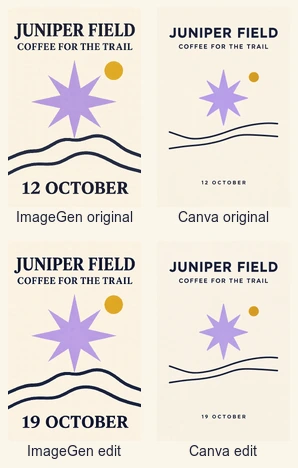
Next we asked each tool to replace 12 OCTOBER with 19 OCTOBER, keeping the rest of its poster. Both changed the date. ImageGen kept the original dimensions, and a pixel comparison found differences above the date line. Canva’s original and edited previews look close, but the asset dimensions changed. That matters when an image is placed in an existing print or layout file.
Keep the date in an editable text layer when a change must preserve the rest of the layout exactly. Generate the illustration, place it in the working document and set the event details there. You can then change the date without regenerating the image. Photoshop alternatives for layered edits
Check the brand marks in packaging and editorial art
We asked both tools for a cream coffee pouch with a lavender eight-point star, one mustard dot and the name Juniper Field. The fictional product stood on a navy plinth against a lavender wall. Both tools kept the main marks in the sampled product view. Canva framed the pouch farther back, while ImageGen made the pack larger in the frame. That changes how much room a headline has next to it.
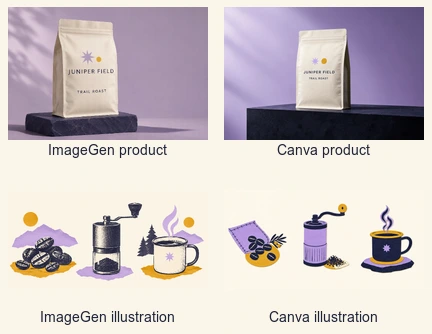
The editorial prompt called for three stages with no words: beans, a hand grinder and a steaming enamel cup. Both images read in that order. ImageGen added an outdoor landscape. Canva kept the background more open and put a packet beside the beans. If the illustration is meant to teach a process, the useful check is whether someone can name the stages at the width the article will use. Guide to hand-drawn diagrams
1. ImageGen for concept work with prominent text
Start here when you want to see how a campaign image and its headline could work together. In our poster, the event date remained easy to read at the preview size. The packaging result also gave the pouch enough space in the frame to inspect its front.
For a production handoff, check what moved after an edit. If a stakeholder asks for a new date or price, use the generated image as the artwork and make the text change in a layout editor. When you need several images that must share the same packaging, compare the logos and proportions in the actual outputs before approving them. OpenAI on image generation and editing
2. Canva for generating assets inside a design workflow
Canva’s generator handled the same three types of asset. In our test, the product mockup gave the label more negative space, and the editorial illustration used a simple layout that can sit beside article copy. When a project already lives in Canva, an image can become one component of the design while the team keeps the title and date editable.
Inspect the generated file and any edited copy before placing it at a fixed size. Our date change succeeded, while the asset dimensions changed. Canva provides separate ways to generate media and lay out a design. Pick the format your next editor needs at export. Canva image generation guide · Canva export formats
Run a quick check before approving an image
- Ask for a short line of exact text and inspect it at the intended delivery size. Compare the spelling with the brief.
- Put the same mark on two different assets. Compare its shape, position and colour before approving the pair.
- Request one small edit. Compare the output dimensions and inspect the area outside the edit.
- Keep the typography, labels and other information likely to change editable in the final design file.
Frequently asked questions
Which AI image generator is best for exact poster text?
Both tested tools rendered three short lines correctly in one poster run. ImageGen gave the date more prominence in that example. Test your exact wording, especially if it includes a long headline, unusual name or price.
Can an AI image generator change a date and keep everything else the same?
It can change the date, but the rest of the file deserves a check. ImageGen kept the dimensions in this test while changing some pixels outside the date. Canva generated the correct date at a different source resolution. An editable text layer gives you control over a late copy change.
Is a generated image ready for print?
Check final dimensions, colour settings, bleed and the printer’s required format. A preview can confirm the layout and spelling. Inspect the full exported file before sending it to print.